How to create an external region #
An external region lets you add video processing capacity outside your main Nimbra Edge cluster, for example at another site. First create the region in Network Manager, then install a Core Video Appliance on a Linux host at that site.
Before you start #
You need a superuser account in Network Manager and a Linux host that meets the video appliance requirements. Install Docker Engine on the host, and make sure you can run commands with sudo. The host must be able to reach your Nimbra Edge installation and exchange video traffic with the other appliances it will use.
1. Create the region #
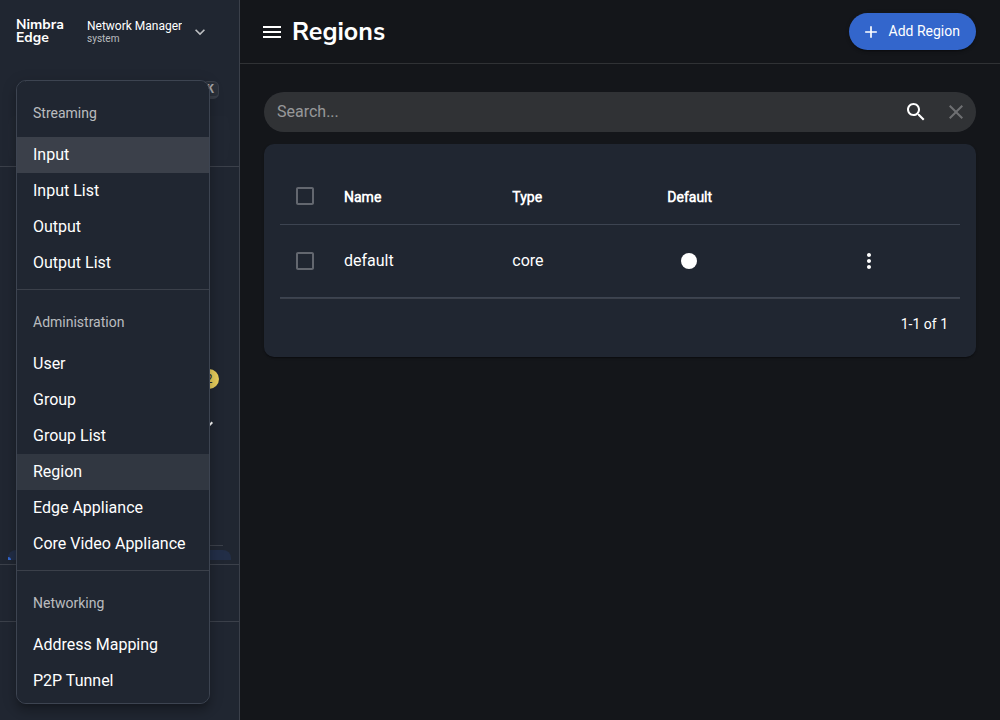
In Network Manager, open Create New… → Region.
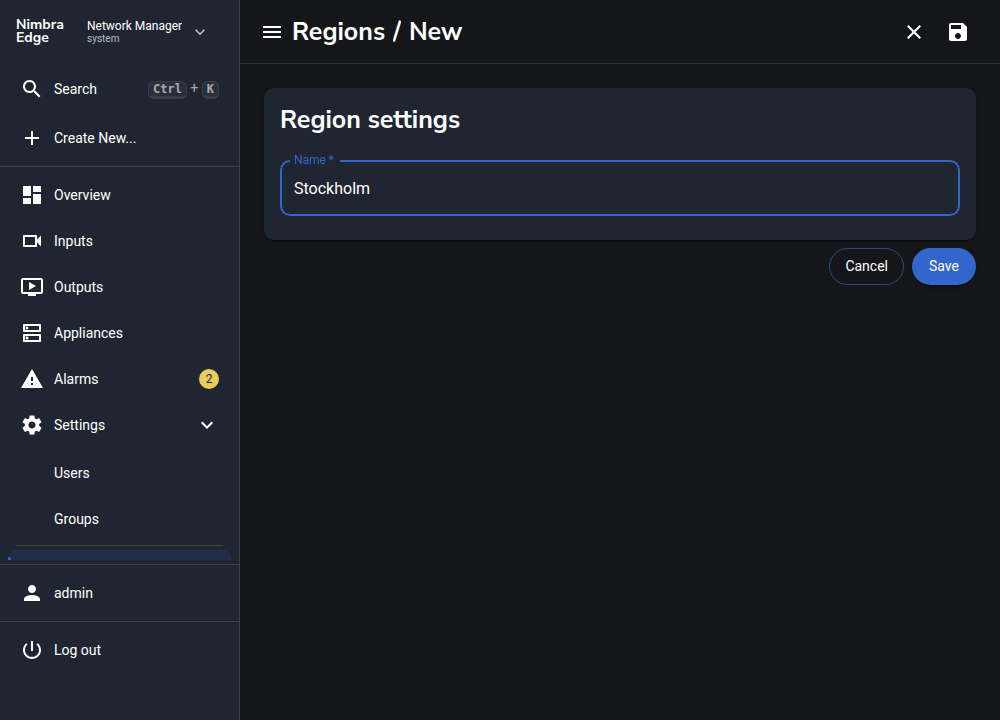
Enter a name for your region in the Name field, for example Stockholm, and click Save. The region now appears in the Regions list; it has no video appliances yet.
2. Get the installation command #
Open Create New… → Core Video Appliance. Enter a name for your video host, for example stockholm-1, and select the region you just created. Click the Copy to Clipboard icon beside the installation command.
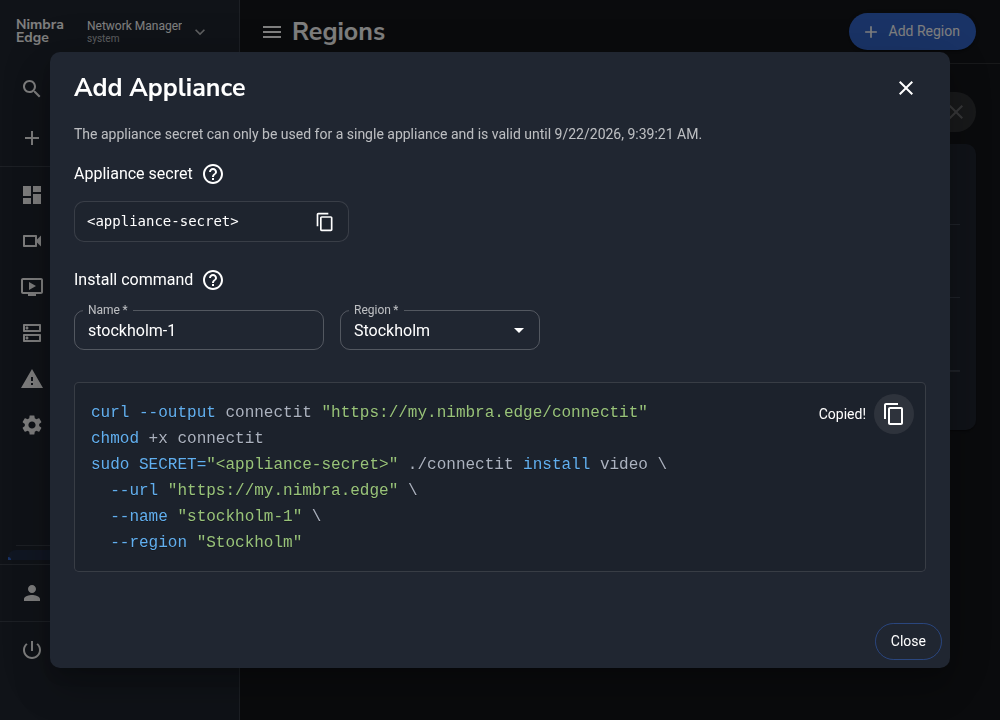
The command includes a temporary, single-use appliance secret. Keep it private. If it expires before you install the appliance, return to this dialog to get a new command.
3. Install on the video host #
Connect to the Linux host, for example over SSH, and paste and run the copied command. It downloads the CLI tool from your Nimbra Edge installation and starts the video appliance with the name and region you selected.
$ sudo SECRET="<appliance-secret>" ./connectit install video \
    --url "https://my.nimbra.edge" \
    --name "stockholm-1" \
    --region "Stockholm"
Using predefined core secret
Pulling control image (docker.io/netiedge/edge-control:R4.1.6)
Pulling data image (docker.io/netiedge/edge-data:R4.1.6)
Starting control container edge-video-stockholm-1
Successfully started Video appliance stockholm-1 connected to https://my.nimbra.edge!
4. Check the connection #
Open Settings → Appliances in Network Manager. Find the appliance by the name you chose, check that it is online, and confirm that it belongs to your new region. A green status indicator means the appliance is connected.
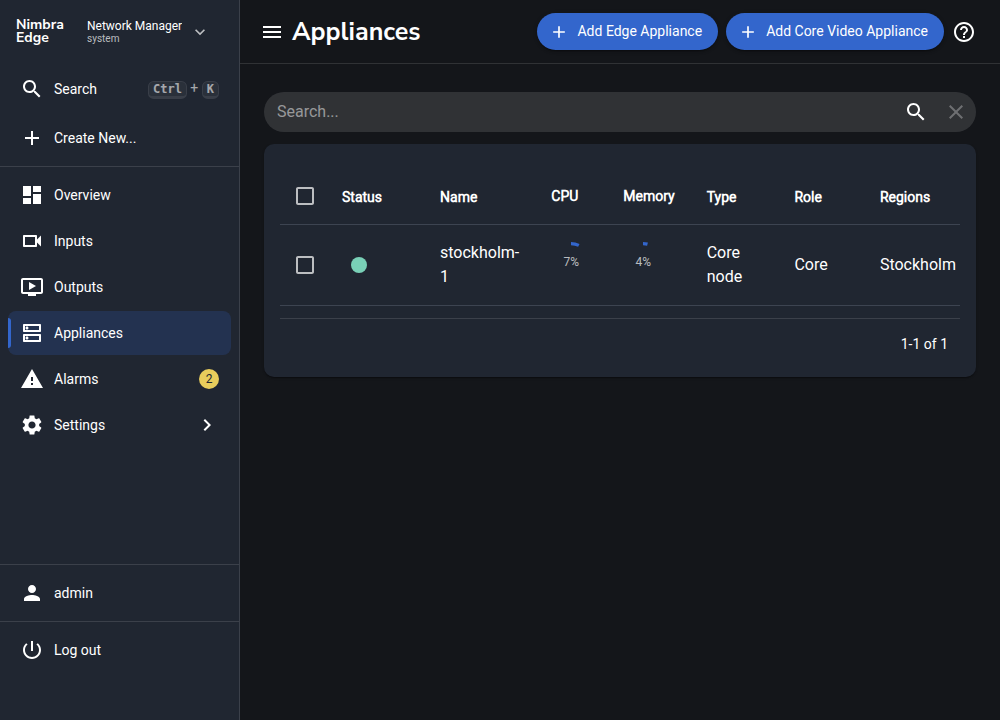
To add more capacity, repeat steps 2–4 on another host with a new appliance name, such as stockholm-2, and select the same region.