How to delete an external region #
Remove the video appliances before deleting their region. These steps apply to an external region with video appliances installed using the CLI tool. You need a superuser account in Network Manager and sudo access to each video host.
1. Move or stop the affected streams #
Check which inputs and outputs use the region. Move them to another region or stop them before continuing. Uninstalling an appliance interrupts any streams still using it.
2. Uninstall the video appliances #
On each video host, open a terminal in the directory containing the CLI tool and run:
sudo ./connectit uninstall video
Repeat for every video appliance in the region.
3. Remove the offline appliances #
In Network Manager, open Settings → Appliances and check that the region’s video appliances are offline. Open each one, click Remove appliance in the toolbar, and confirm Remove.
Make sure no appliances remain assigned to the region. An offline appliance still counts as assigned until you remove it or move it to another region.
4. Delete the region in Network Manager #
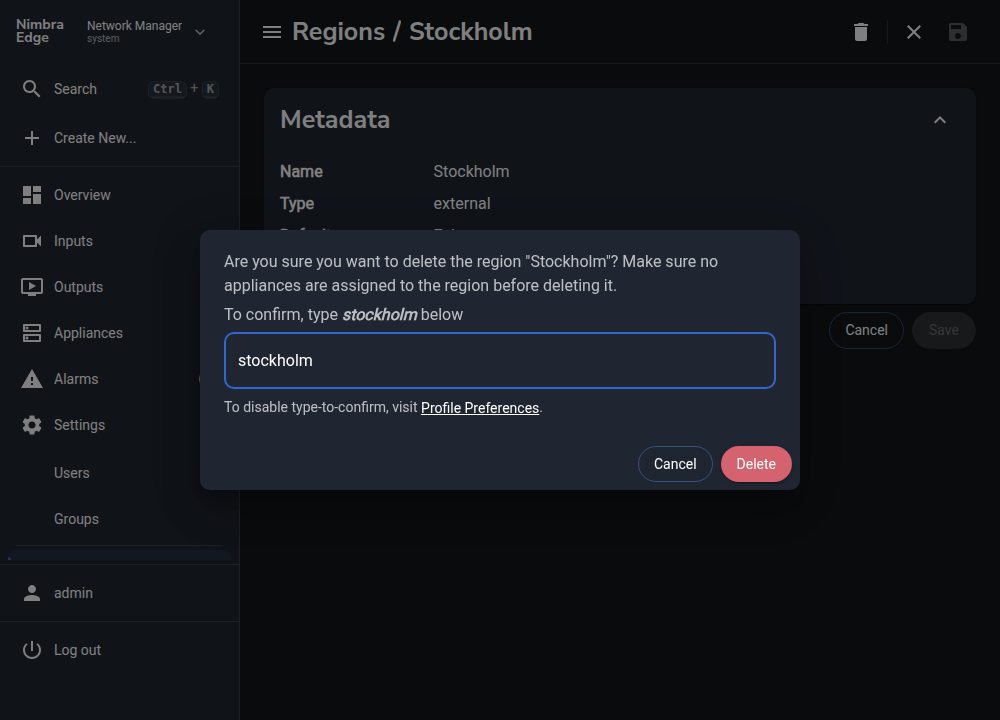
Open Settings → Regions and select the region you want to remove. Click Delete region in the toolbar. If prompted, type the region name, then click Delete. The region disappears from the list.
The default region cannot be deleted. If this is the default region, choose another default region first. The main cluster’s Core region also cannot be deleted.