2. Deploy Nimbra Edge #
Deploy the server that will run Nimbra Edge and its Network Manager web interface.
Launch the stack #
A CloudFormation stack creates and manages the resources for your installation as a group, including the server and its security group.
Launch Nimbra Edge R4.2.0 in your AWS region:
- Asia Pacific (Mumbai)
- Asia Pacific (Singapore)
- Europe (Frankfurt)
- Europe (Stockholm)
- Europe (London)
- South America (São Paulo)
- US East (N. Virginia)
- US East (Ohio)
- US West (N. California)
- US West (Oregon)
- Open the link for your region. The Nimbra Edge Core template is preselected.
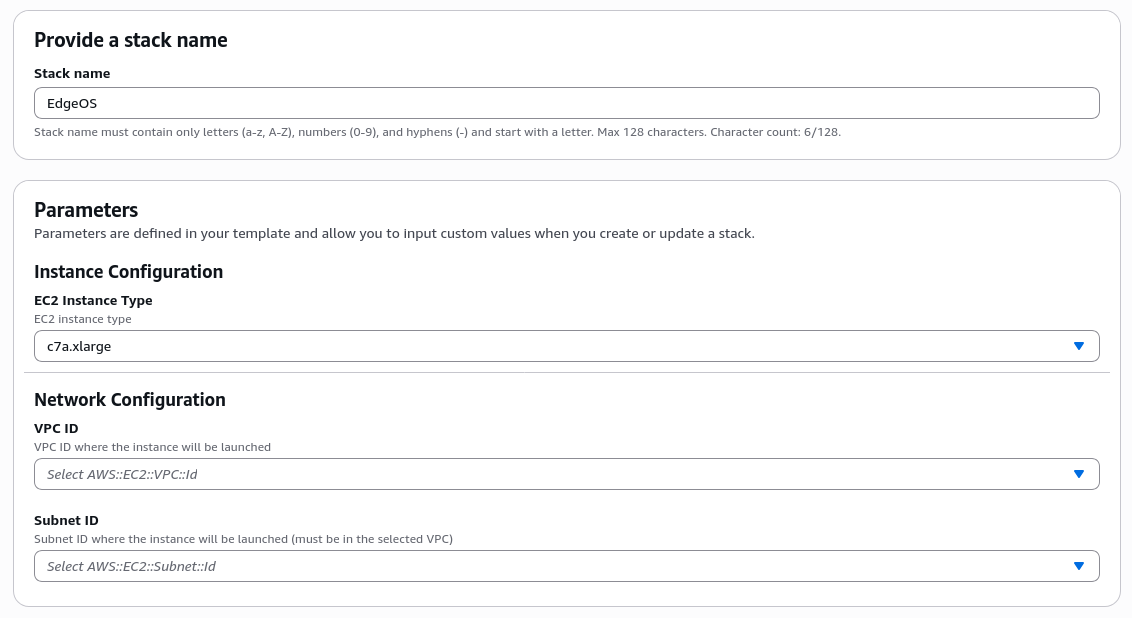
- Give the stack a name, for example nimbra-edge-core.
- Keep the preselected EC2 Instance Type, and choose your VPC ID and Subnet ID.
- Continue through the remaining pages, review the settings, and create the stack.
- Wait for its status to become CREATE_COMPLETE.
Open the setup interface #
- Open the stack’s Outputs tab.
- Follow WebUI to the appliance setup interface on port 9443.
- The initial certificate is self-signed. Check that the address matches the stack output, then accept the browser warning.
- Sign in as admin with Password from the outputs. Change this appliance password after first login.
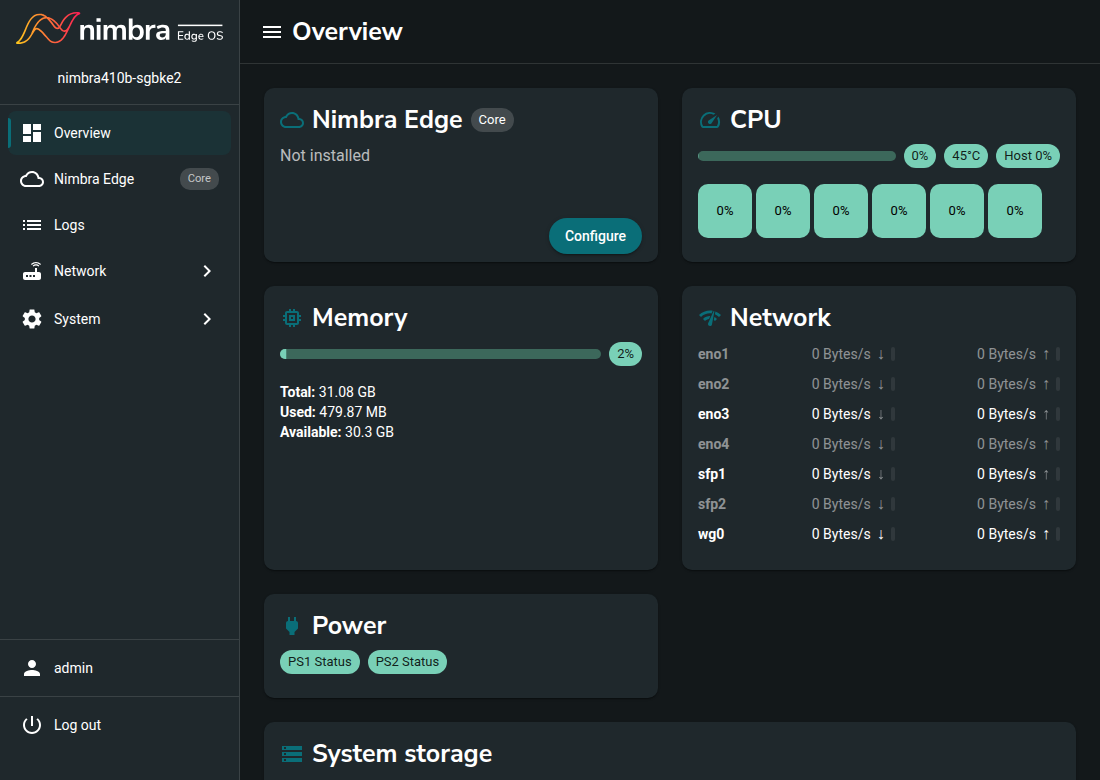
After signing in, the Overview page shows Nimbra Edge as Not installed. Click Configure to open the installation form used in the next step.