How to reinstall Edge OS using USB #
Purpose #
This guide describes how to reinstall Edge OS on a supported device using a USB installer drive.
If the appliance currently runs NimOS, use the migration workflow in Network Manager instead. This USB procedure is for reinstalling an appliance that already runs Edge OS or recovering from a failed migration.
Reinstalling Edge OS overwrites the appliance’s internal drive. All configuration and data on the appliance are lost.
Prerequisites #
- A USB drive
- A computer for writing the USB image
- An Edge OS supported device (Nimbra 410, 414, 520)
Download the installer image #
Download the USB installer image from the artifact registry:
Write the image to USB #
Option 1: Balena Etcher or Rufus #
You can also use Balena Etcher (Linux/macOS/Windows) to write the image. Select the .wic.gz file and the USB drive, then flash.
Option 2: dd (Linux/macOS) #
Identify your USB device (e.g. /dev/sdX) and write the image:
zcat installer-edge-<connect/core>-nimbra.wic.gz \
| sudo dd \
    of=/dev/sdX \
    bs=4M \
    status=progress

sync
Warning: Double-check the target device.
ddwill overwrite whatever device you point it at without confirmation.
Reinstall Edge OS #
- Insert the USB drive into the device
- Boot or reboot the device
- Press F11 during startup to open the boot menu
- Select UEFI: USB, Partition 1 ( USB)
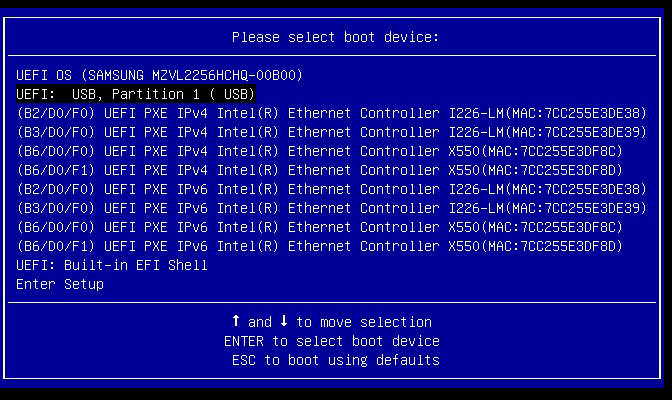 5. The installer boots automatically, writes Edge OS to the NVMe drive, and reboots
Note: The installer needs a few minutes to write the image to disk and fix the partition table. The device will remain busy during this time before automatically rebooting.
Post-install #
- Remove the USB drive.
- Let the appliance boot into Edge OS.
- Open the appliance web interface and configure it as a new Edge OS appliance.