7. Send your first stream #
You now have all the components needed to send video through Nimbra Edge. You will create a test signal on Edge Connect and an SRT output on your cloud Core appliance, then watch the stream on your computer.
The video will follow this path:
Edge Connect → cloud Core appliance → VLC on your computer
Create a test input #
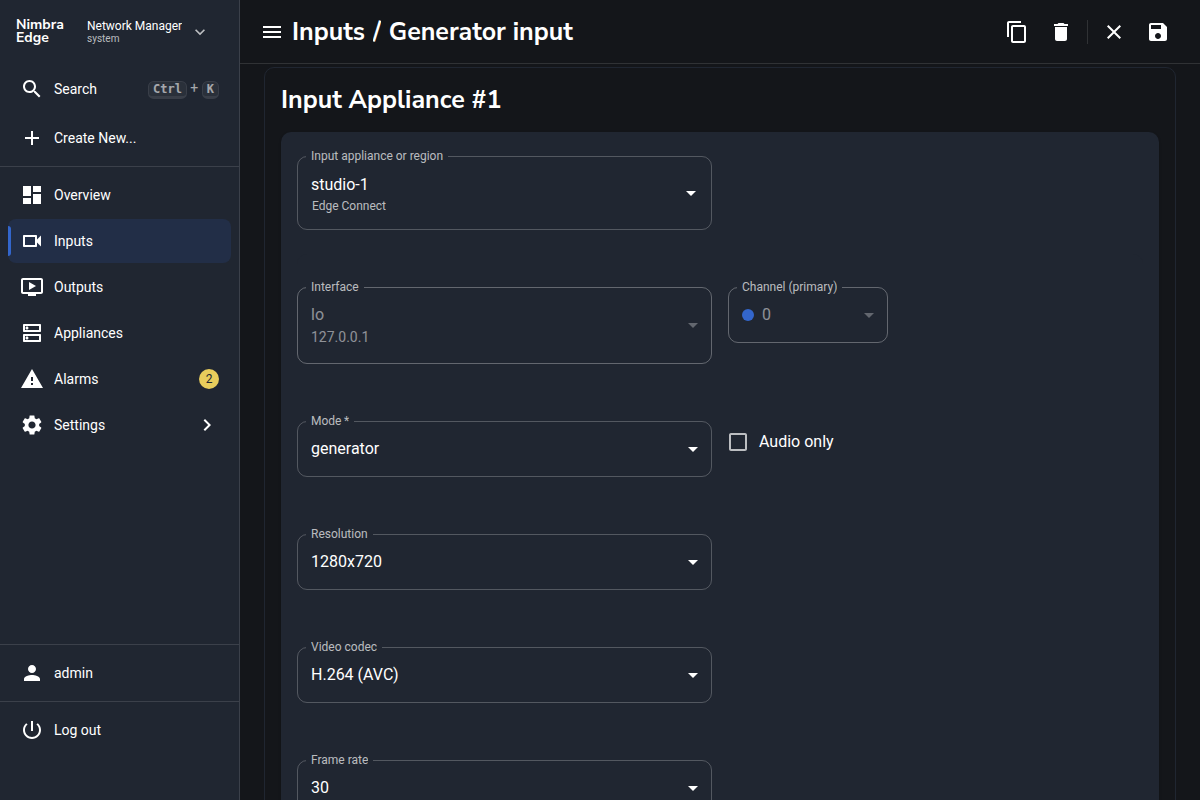
- In Network Manager, open Inputs and click Create Input.
- Name the input Generator input.
- Under Input appliance #1, select your Edge Connect, for example studio-1.
- Choose generator as the mode. Keep the default test signal settings.
- Click Save and wait for the input status to turn green.
A generator produces a test signal on the appliance itself, without an external video source.
Create an SRT output #
This output lets your computer connect to the cloud Core appliance and receive the test signal. For this tutorial, use the Core appliance you created in your chosen cloud.
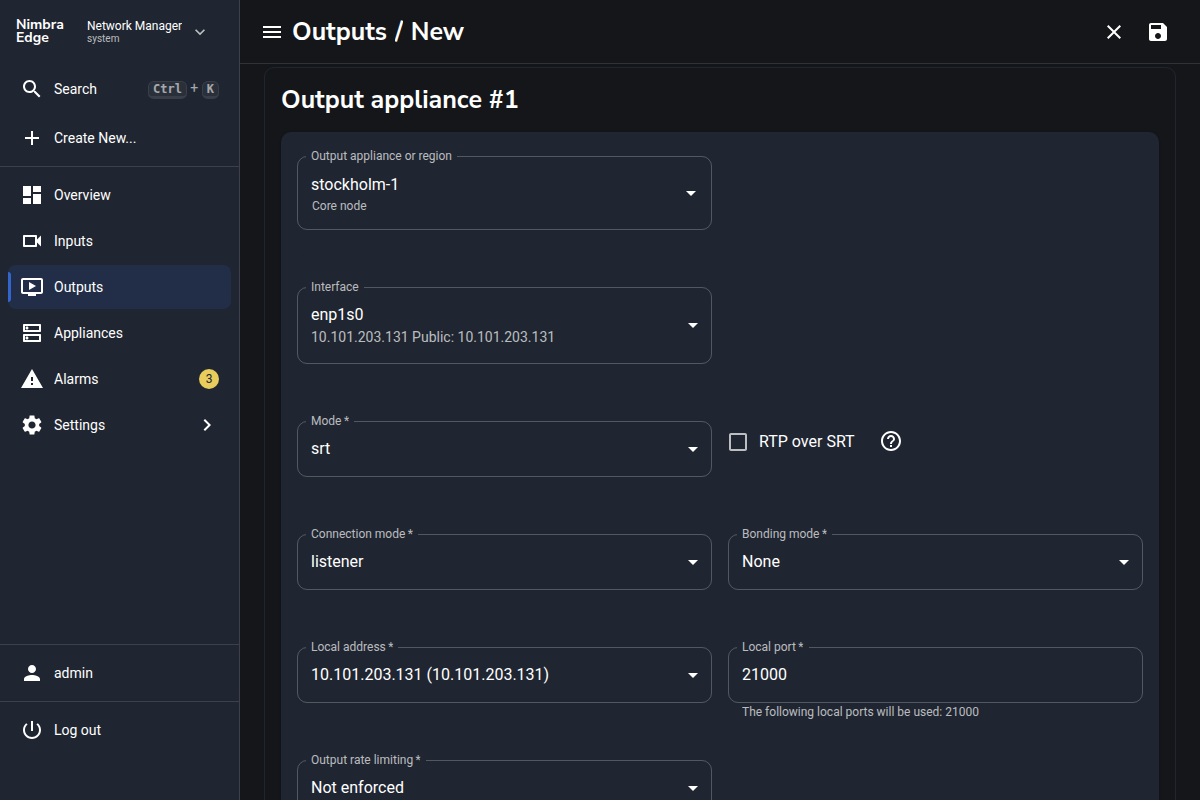
- Open Outputs and click Create Output. Name it Test output.
- Under Output appliance #1, select your Core appliance, for example stockholm-1.
- Choose the network interface with a public IP address. Note that public IP; you will use it in VLC. If it is missing, follow Fix public IP mapping alarm.
- Set Mode to srt and Connection mode to listener.
- Use the selected interface’s local address and set Local port to 21000. The supplied AWS and OCI templates allow this UDP port.
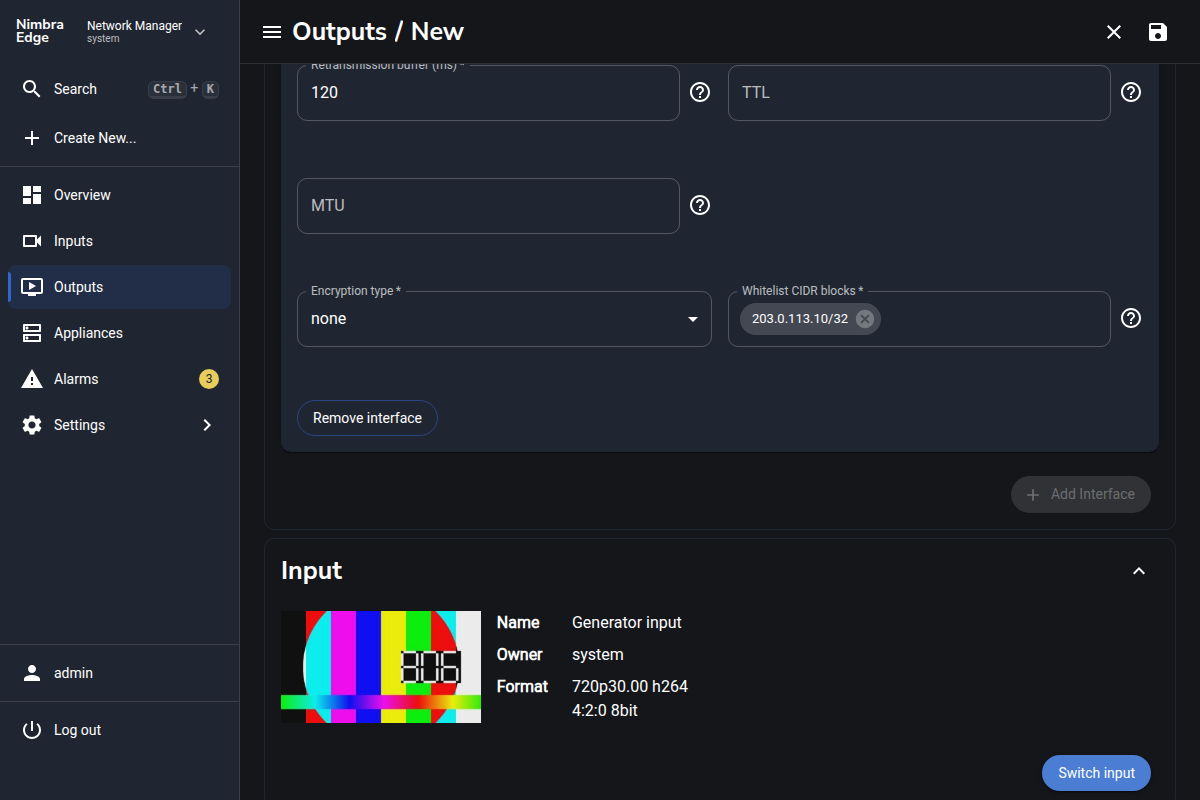
- Under Whitelist CIDR blocks, allow your viewing computer’s public IP address with a
/32suffix, for example203.0.113.10/32. Replace this example with your actual public IP address. - In the Input section, click Switch Input and select Generator input.
- Click Save.
Watch the stream #
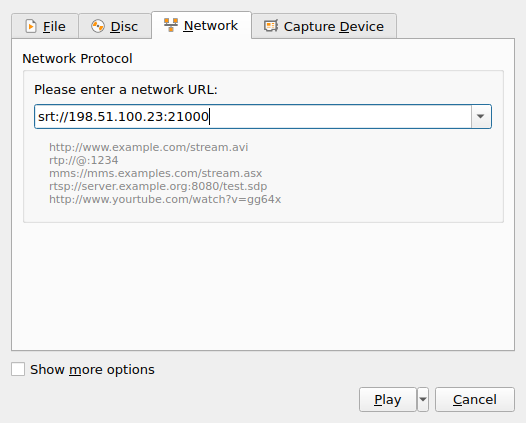
Open VLC on your computer. Choose Media → Open Network Stream and enter:
srt://<video-appliance-public-ip>:21000
Replace <video-appliance-public-ip> with the public IP you noted above, then click Play. You should see the generator’s test signal.
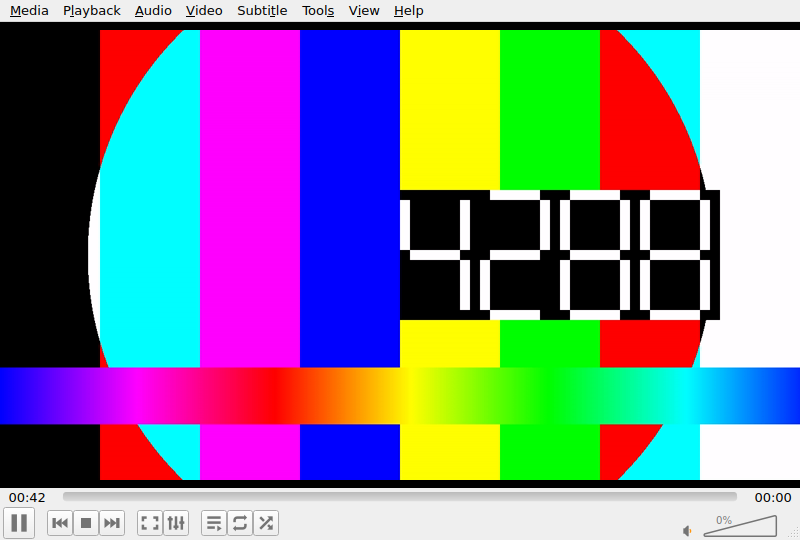
If playback does not start, check that both appliances are online and the input is green. Confirm the output’s public IP and port, that the whitelist includes your computer’s current public IP, and that your network allows outbound UDP traffic to port 21000.
You have now sent video from your site through Nimbra Edge in the cloud to a viewer. You can use other input and output modes to connect your own sources and destinations.
When you finish #
Delete the test output and input when you no longer need them. To remove the cloud installation too, follow the cleanup instructions.