How to install an appliance license offline #
Use this when the appliance cannot reach the internet. You download the license file from Nimbra Console on a computer that has internet access, and install it in the appliance’s web interface.
Download the license file #
-
In Nimbra Console, select Appliances in the menu, and then select the appliance’s serial number.
-
In Current Licenses, select Download license. You get a file named like
nimbra-license-N5D4R9-v3.txt, where the last number is the version of the license file.To paste the license instead of using a file, select Copy license.
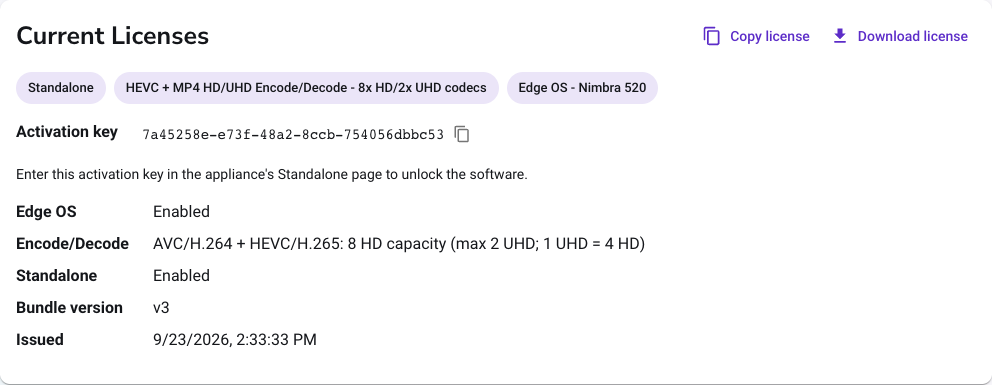
Every time you allocate another license to the appliance, the version goes up. Download the file again to get the new license.
Install the license file #
- Open the appliance’s web interface and sign in as an administrator.
- Go to Management > License and select Install license.
- Drag the downloaded file into the window, or select Select file and choose it. If you copied the license, paste it into the text box instead.
- Select Install license.
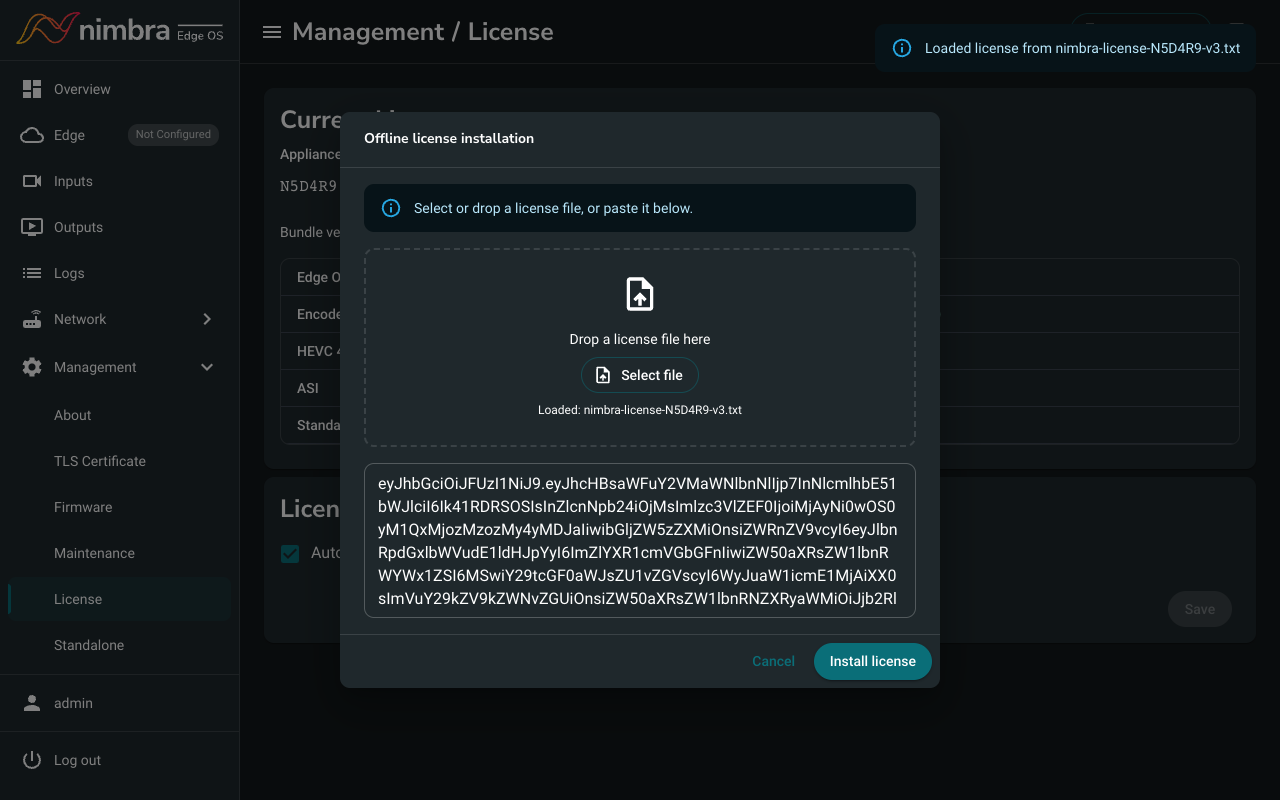
The appliance confirms the installation and lists the new licenses under Current Licenses.
If the license is not accepted #
| Message | What to do |
|---|---|
| Serial number mismatch | The file is for another appliance. Download the file for this serial number. |
| A newer license bundle (vN) is already installed | The appliance already has a newer license. You don’t need to install this file. |