How to allocate licenses to an appliance #
You need the Administrator role in Nimbra Console, and the appliance’s serial number. You find the serial number in the appliance’s web interface under Management > License, and on the label on the appliance.
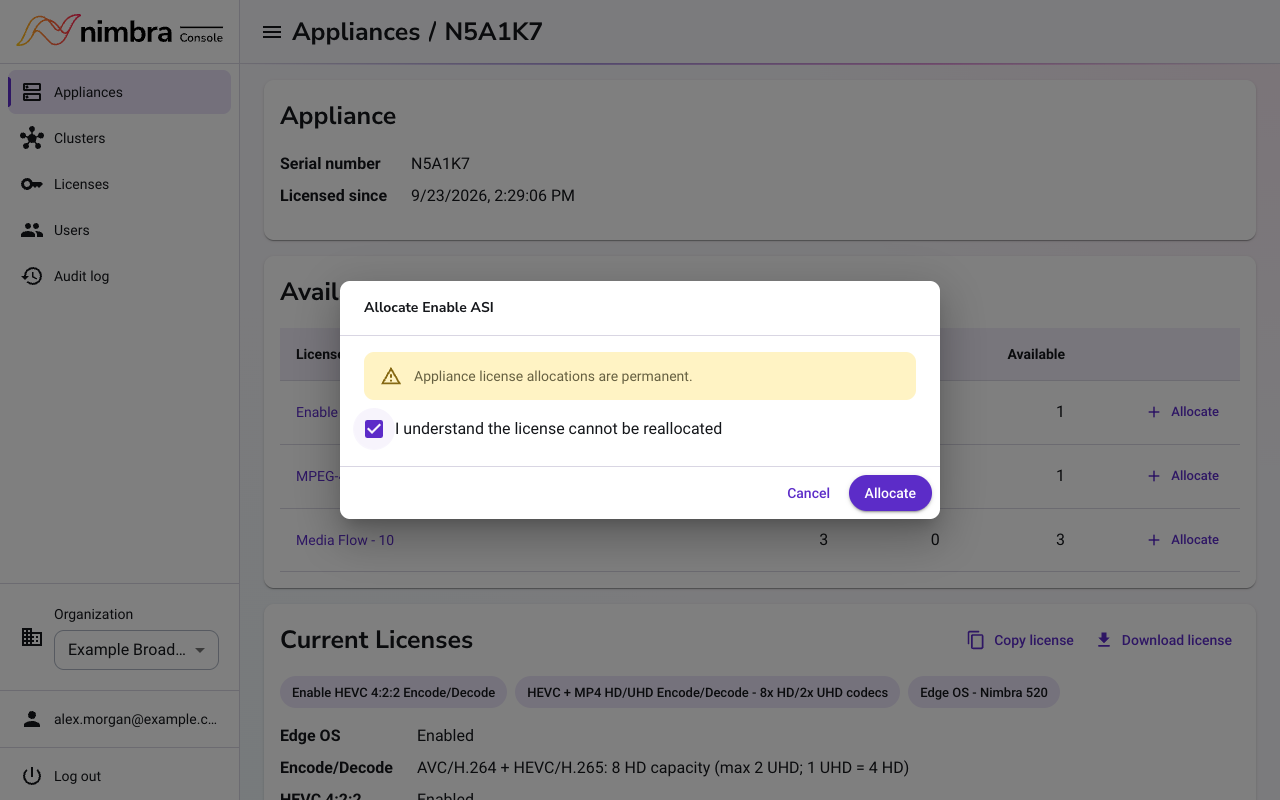
Allocations are permanent. A license cannot be moved to another appliance.
Allocate from the appliance page #
Use this when the appliance already has at least one license.
-
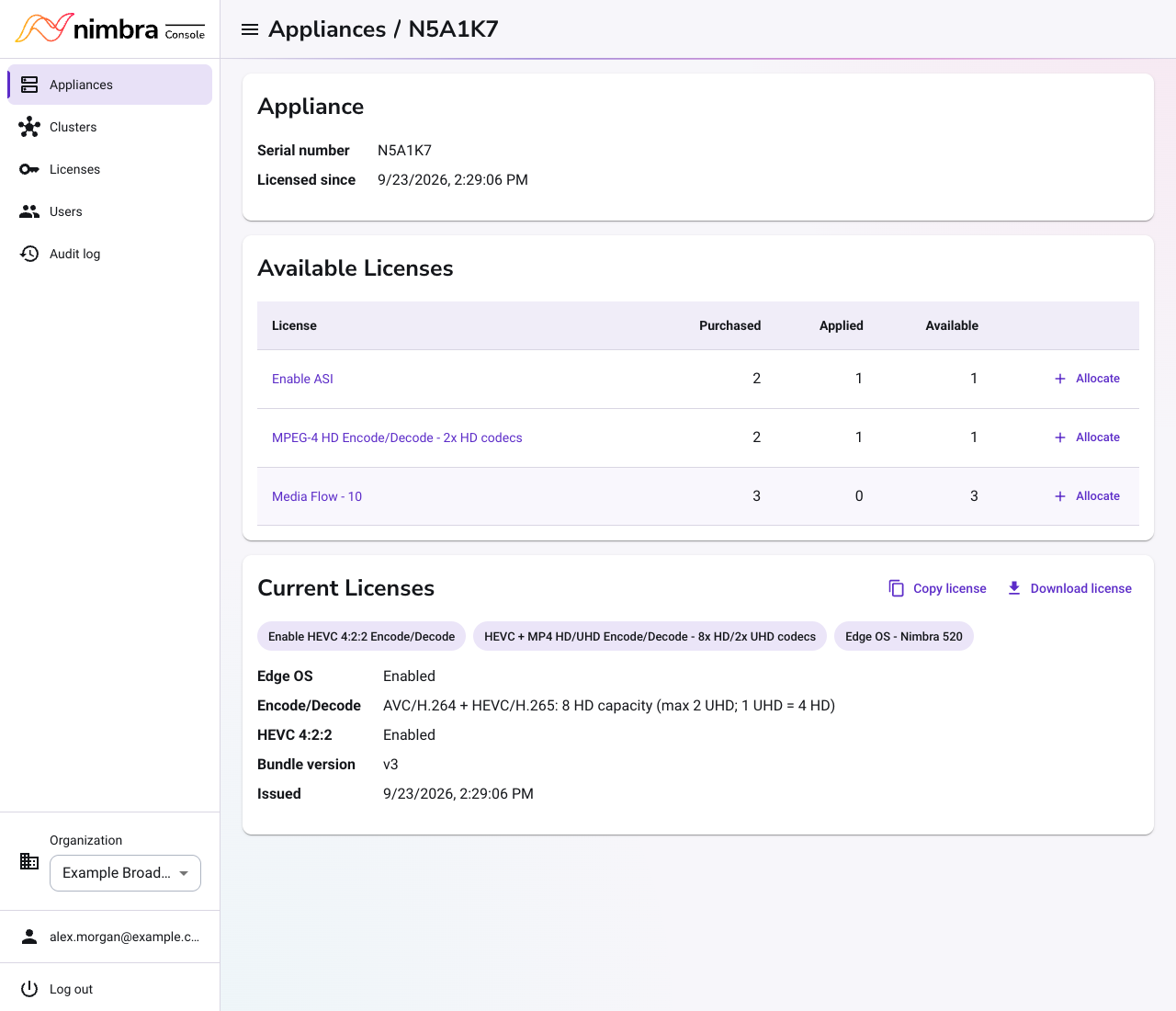
Select Appliances in the menu, and then select the serial number.
-
In Available Licenses, find the license you want and select Allocate. The list only shows licenses that fit this appliance.
-
Select I understand the license cannot be reallocated, and then select Allocate.
Allocate to a new appliance #
If the appliance is not in the Appliances list, allocate its first license from the Licenses page.
- Select Licenses in the menu, and then select the license.
- Select Allocate.
- Enter the serial number exactly as it appears on the appliance.
- Select I understand the license cannot be reallocated, and then select Allocate.
After you allocate #
The new license appears under Current Licenses on the appliance page. The appliance receives it:
- within a minute, if it can reach the internet or is connected to Nimbra Edge
- when you install the license file, if it has no internet access. See Install an appliance license offline.
If you allocate a Standalone license, Nimbra Console also shows an activation key. See Enable standalone mode.
To see which licenses fit which appliance, read Appliance licenses.