How to manage Nimbra Console users #
You need the Administrator role to invite and remove users. See Nimbra Console roles.
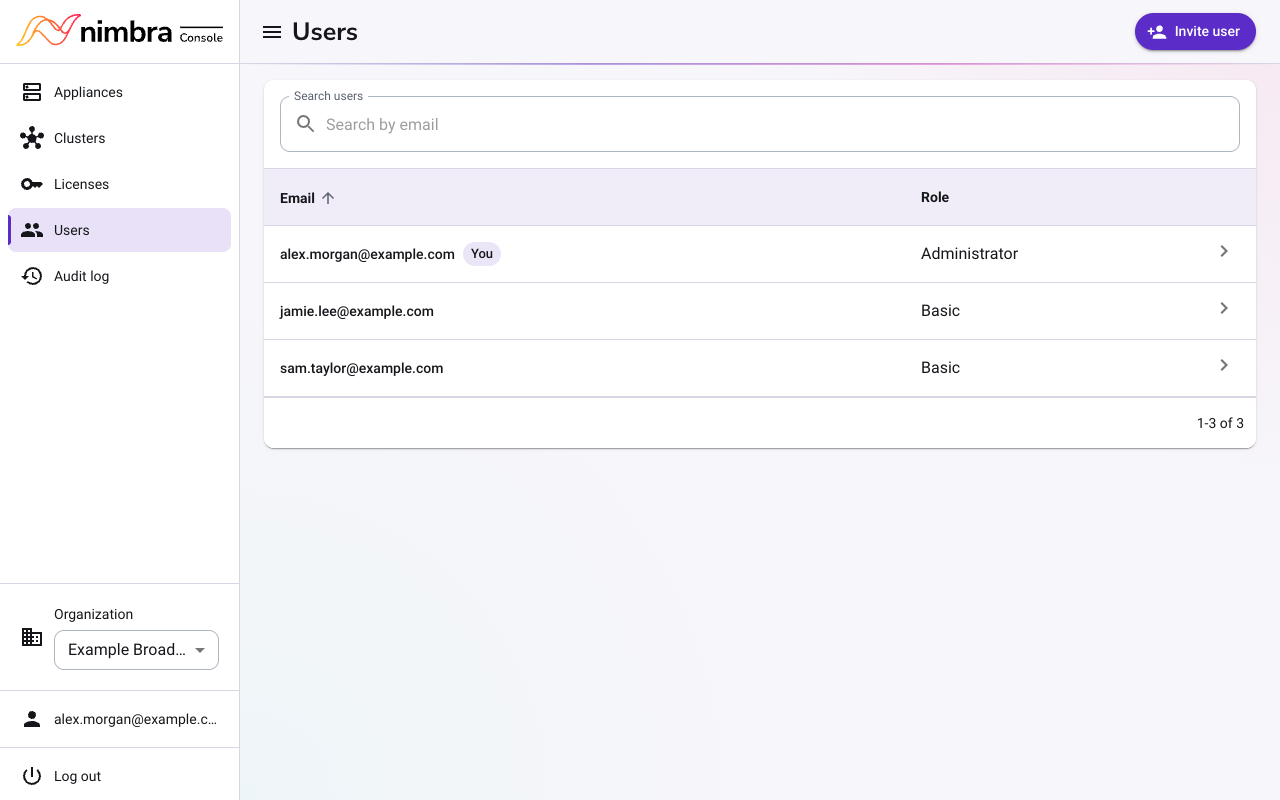
Select Users in the menu to see everyone in your organization and their role.
Invite a user #
- On the Users page, select Invite user.
- Enter the person’s email address.
- Choose a Role: Basic to view information and retrieve license keys and files, or Administrator to also allocate licenses and manage users.
- Select Send invitation.
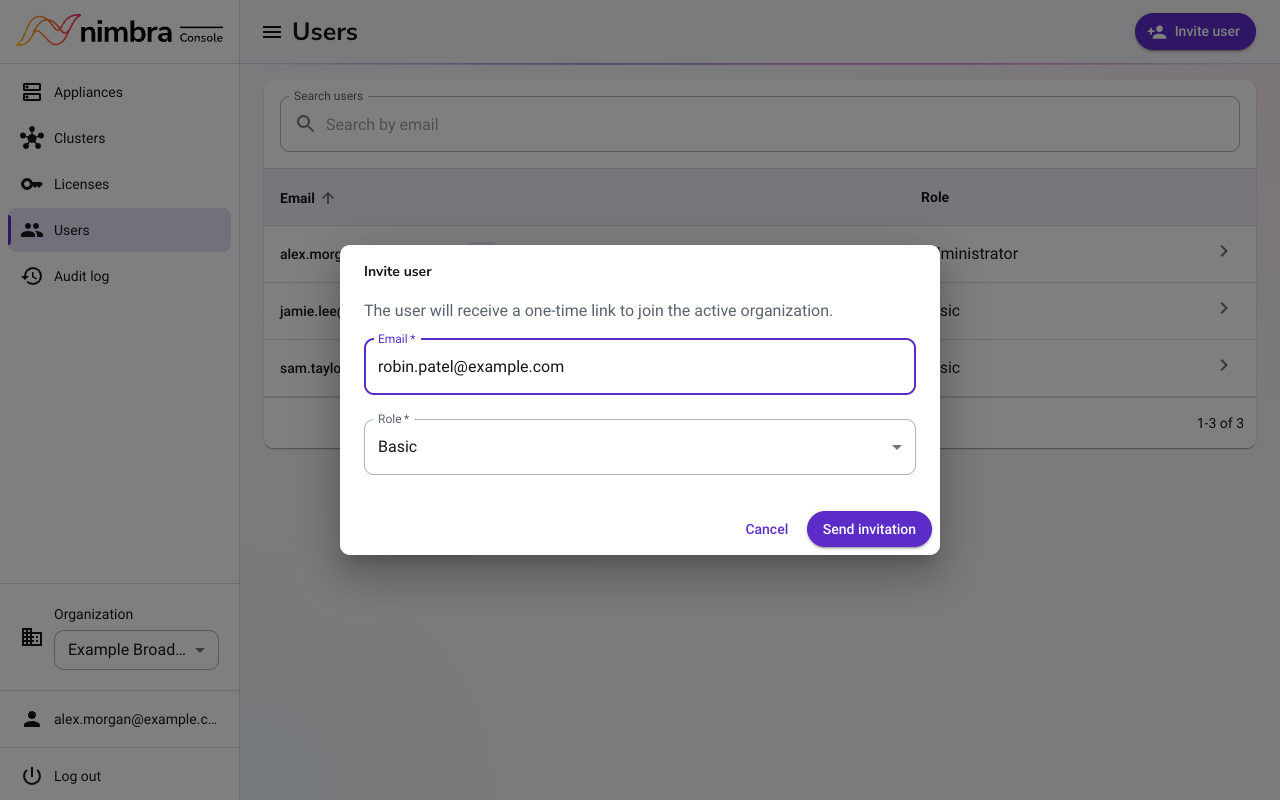
The person receives an email with a link to join. If you invite the same email address again, the earlier link stops working.
The invitation is for the organization you have selected at the bottom of the menu.
Help a user reset their password #
- On the Users page, select the user.
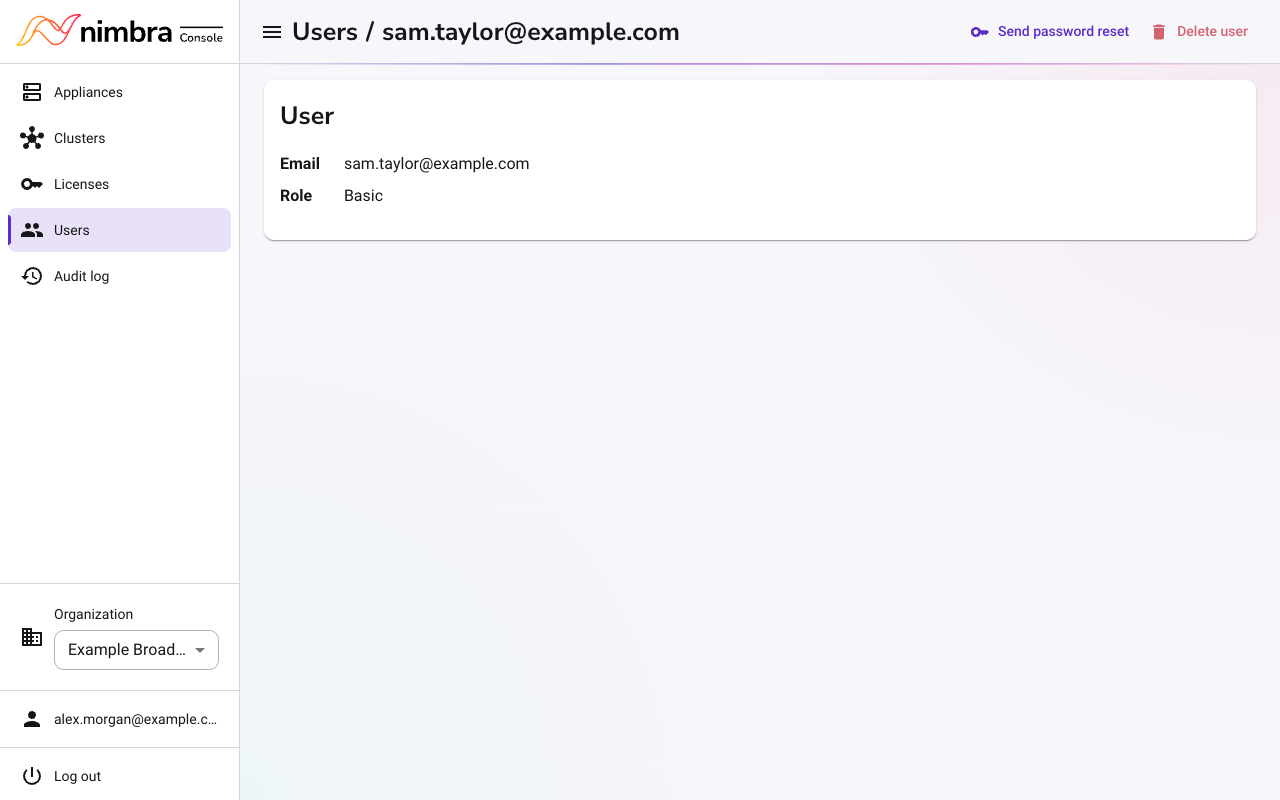
- Select Send password reset, and then select Send reset link.
The user receives an email with a link to choose a new password. Their current password keeps working until they choose a new one.
Remove a user #
- On the Users page, select the user.
- Select Delete user, and then select Delete user again to confirm.
The user can no longer sign in to your organization. If they belong to other organizations, they keep access to those. You cannot remove yourself.