How to enable standalone mode #
In standalone mode, an Edge Connect appliance runs without Nimbra Edge. You set up inputs and outputs in the appliance’s own web interface.
Before you start #
You need:
- A Standalone license for the appliance, and the Administrator role in Nimbra Console
- Administrator access to the appliance’s web interface
- Internet access from the appliance for the activation. After that, the appliance works without internet access.
- An appliance that is not connected to Nimbra Edge. If it is, disconnect it on the Edge page first.
1. Get the activation key #
- In Nimbra Console, allocate the Standalone license to the appliance. See Allocate appliance licenses.
- Nimbra Console shows the activation key. Select Copy key.
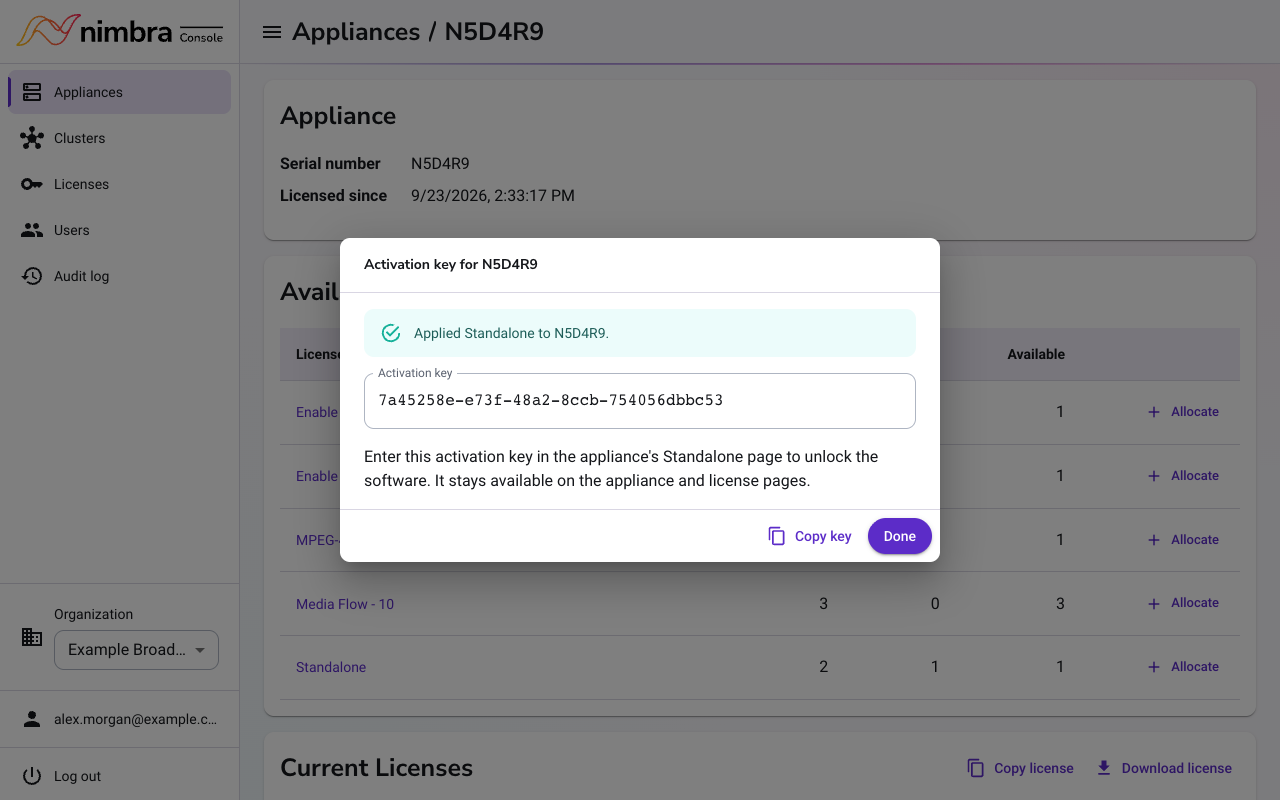
You can find the key again later on the appliance’s page in Nimbra Console, under Current Licenses.
2. Enable standalone mode #
-
Open the appliance’s web interface and go to Management > Standalone.
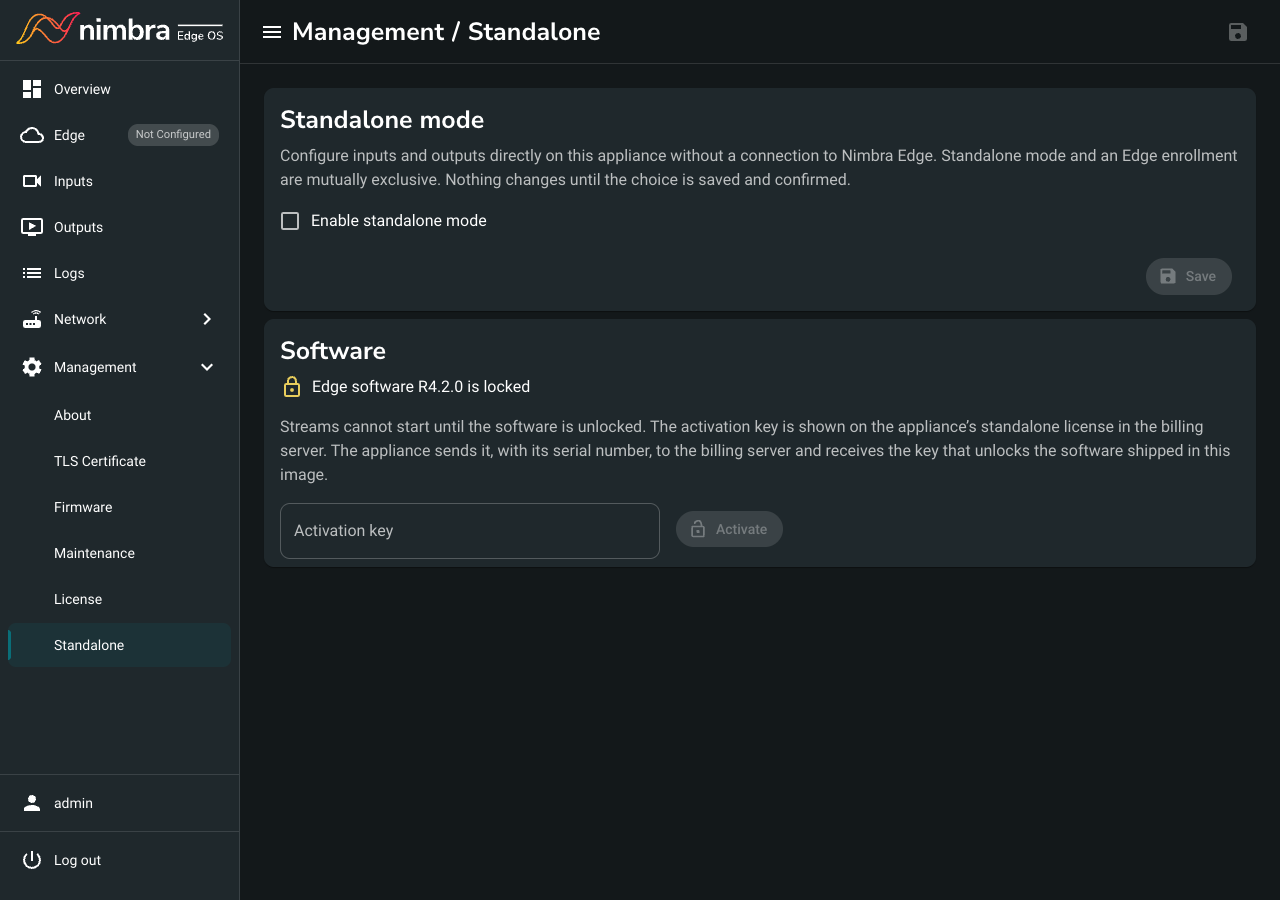
-
Select Enable standalone mode, and then select Save.
-
If the page says the software is locked, paste the activation key and select Activate and enable.
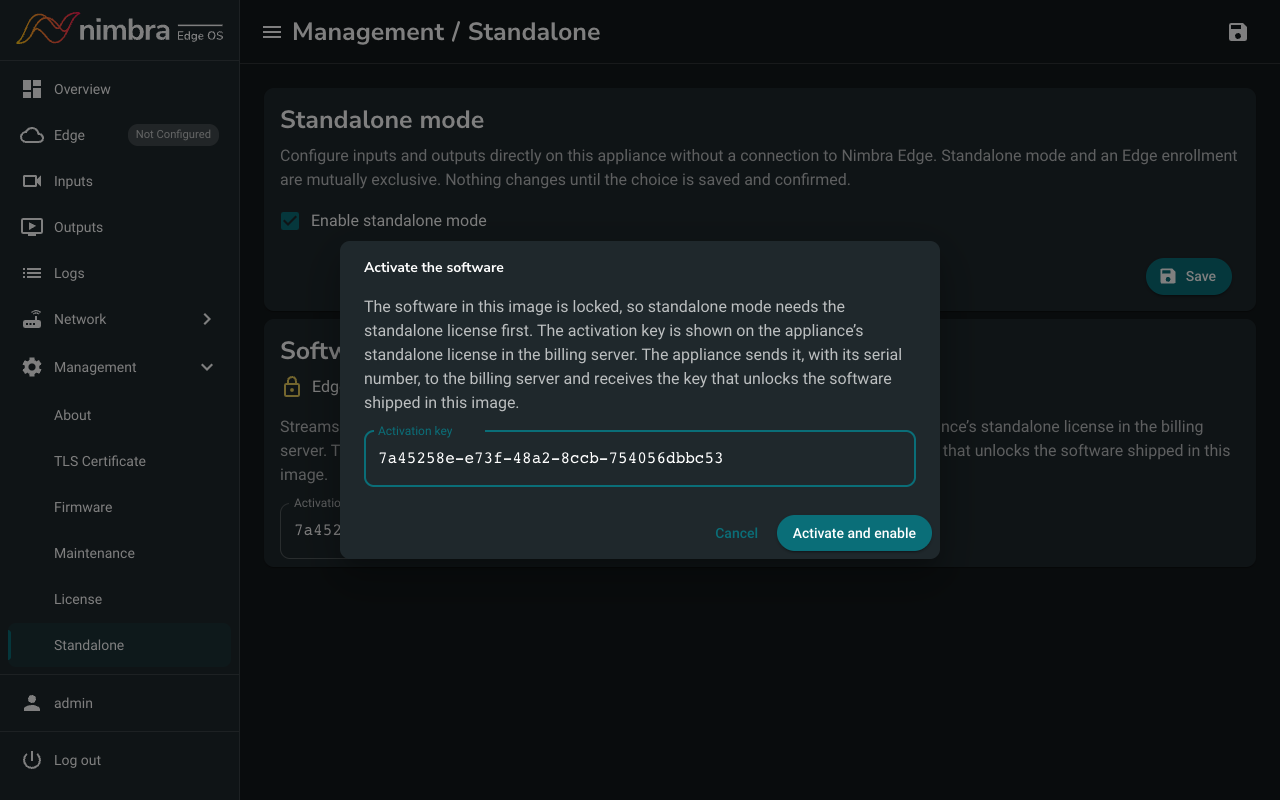
-
Select Enable to confirm.
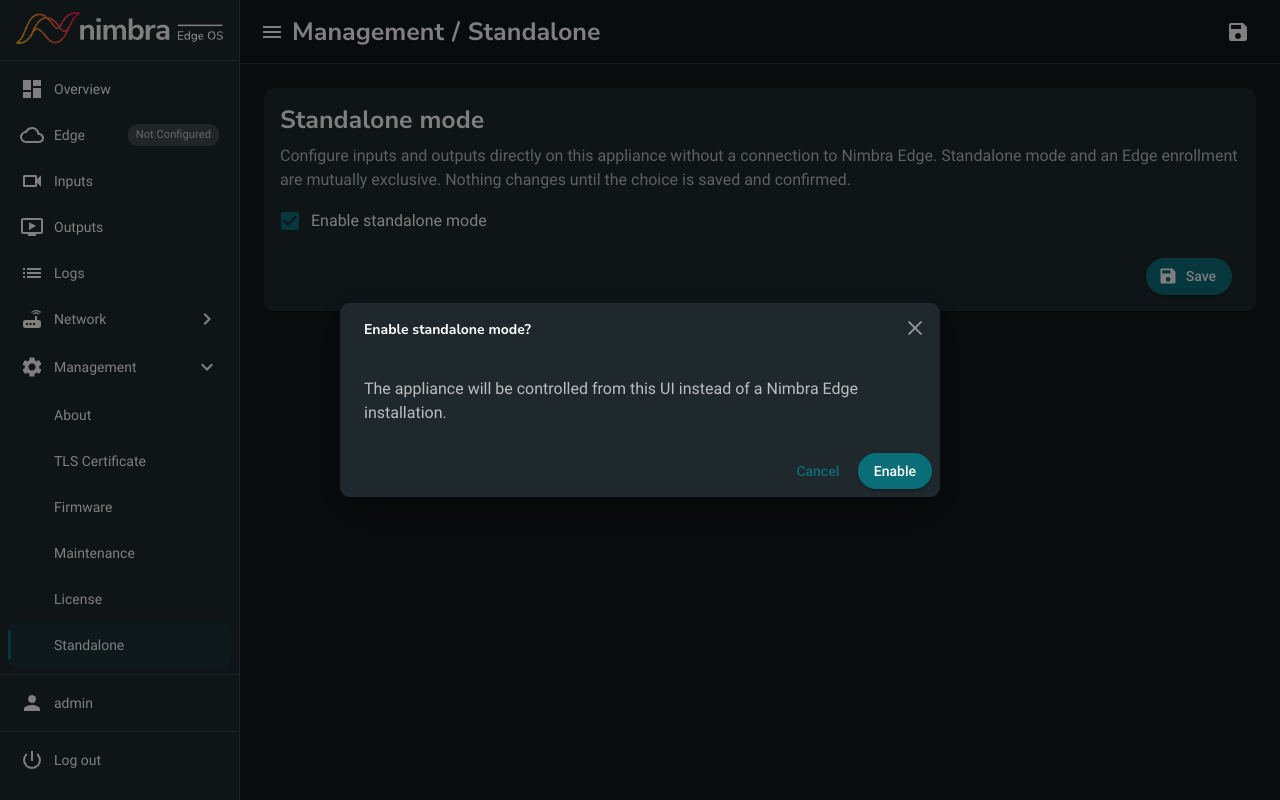
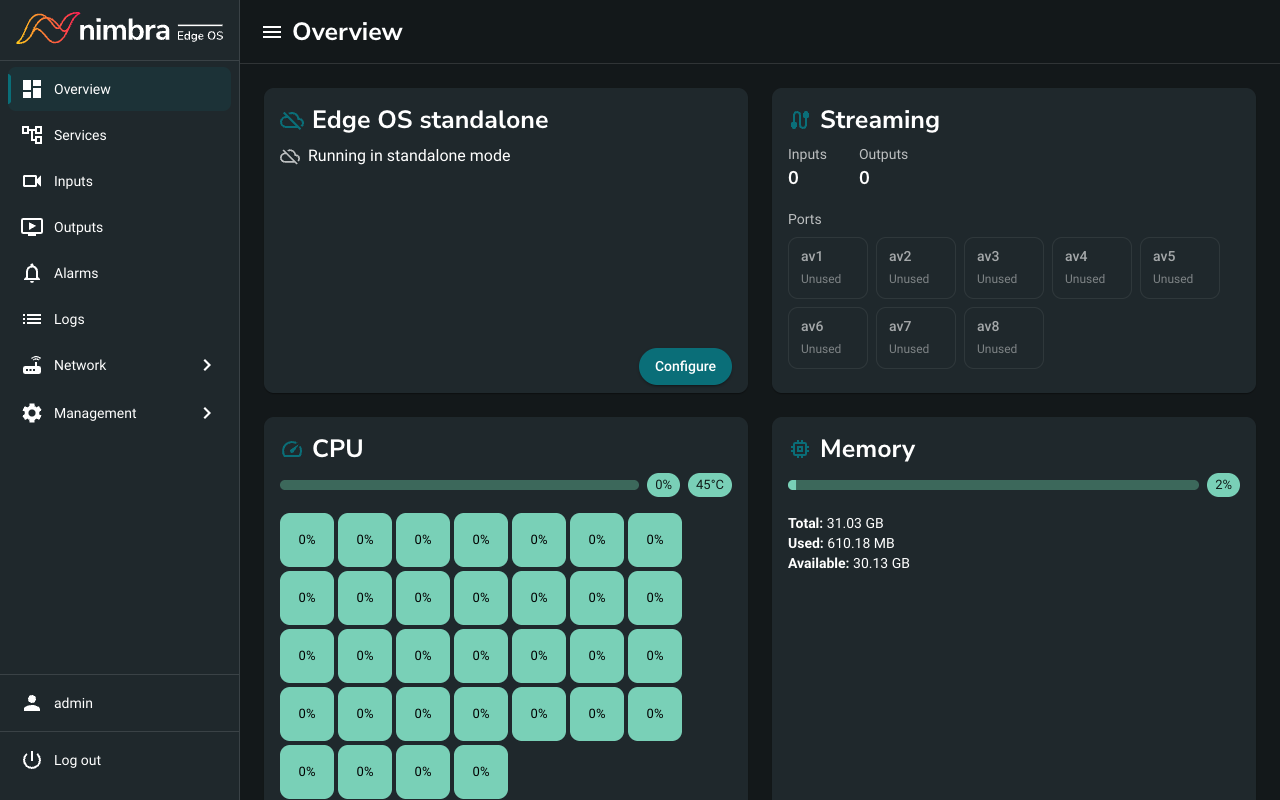
The appliance now runs in standalone mode. Services, Inputs, Outputs and Alarms appear in the menu, and the Overview page shows “Running in standalone mode”.
You only need to enter the activation key once.