4. Connect a Core appliance #
Your Core appliance is deployed. Next, create its region in Network Manager and connect the appliance to your Nimbra Edge installation.
Create the region #
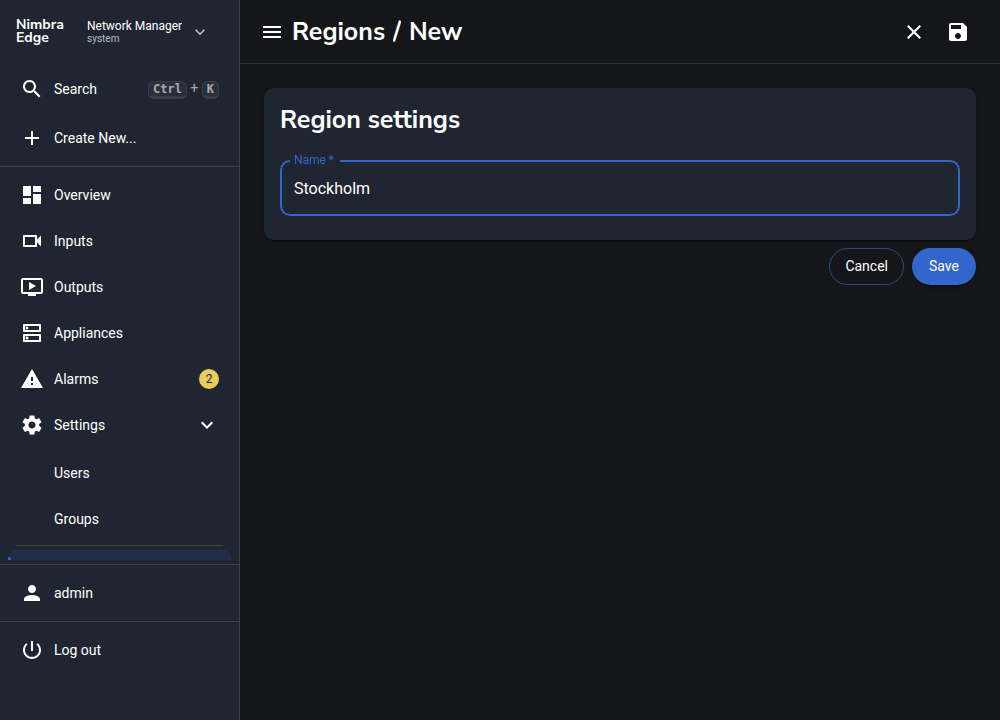
A video region groups the appliances that handle your video traffic. Create one in Network Manager before connecting your new appliance.
- Open Create New… → Region.
- Enter a name, for example Stockholm, and click Save.
Connect the appliance to Nimbra Edge #
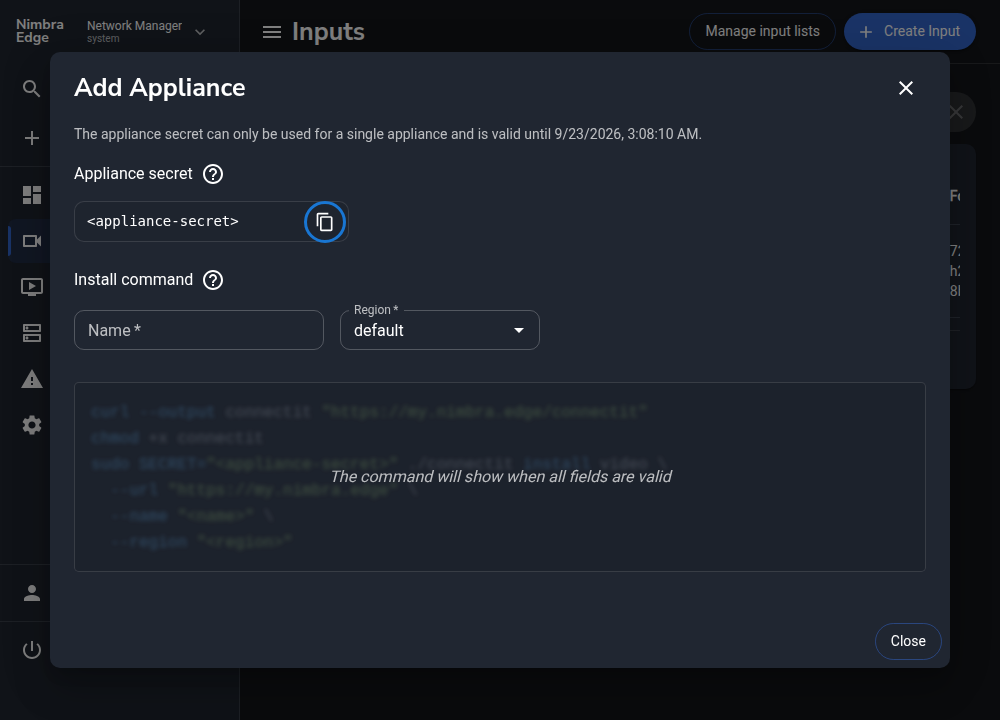
- In Network Manager, open Create New… → Core Video Appliance.
- Copy the Appliance secret using the copy button beside the secret. This temporary, single-use secret authorizes the appliance to join your installation. Keep it private; reopen the dialog for a new secret if it expires.
-
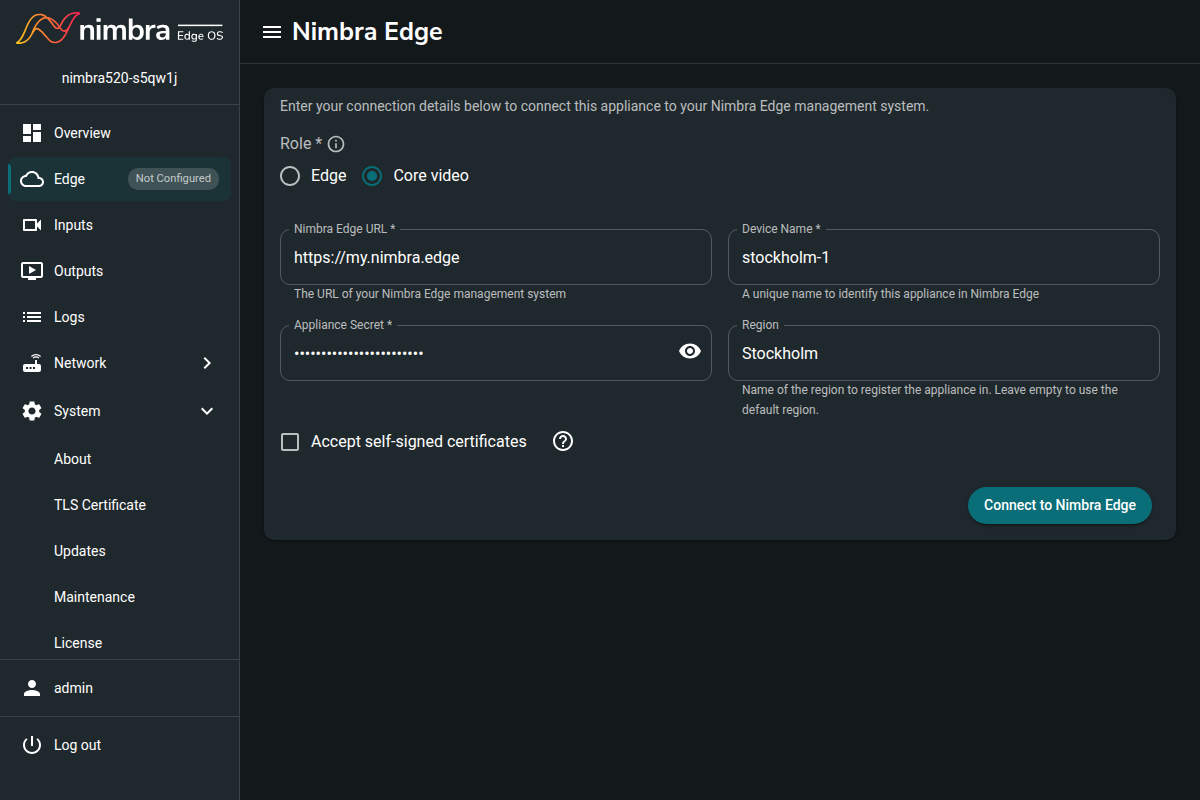
Return to the new appliance’s setup interface and open Nimbra Edge.
-
Set Role to Core video, then enter:
Field Value Nimbra Edge URL Your Nimbra Edge address, for example https://my.nimbra.edgeDevice Name A unique appliance name, for example stockholm-1Appliance Secret The secret you just copied Region The region you created, for example Stockholm -
Click Connect to Nimbra Edge and wait for the connection to complete.
Check your installation #
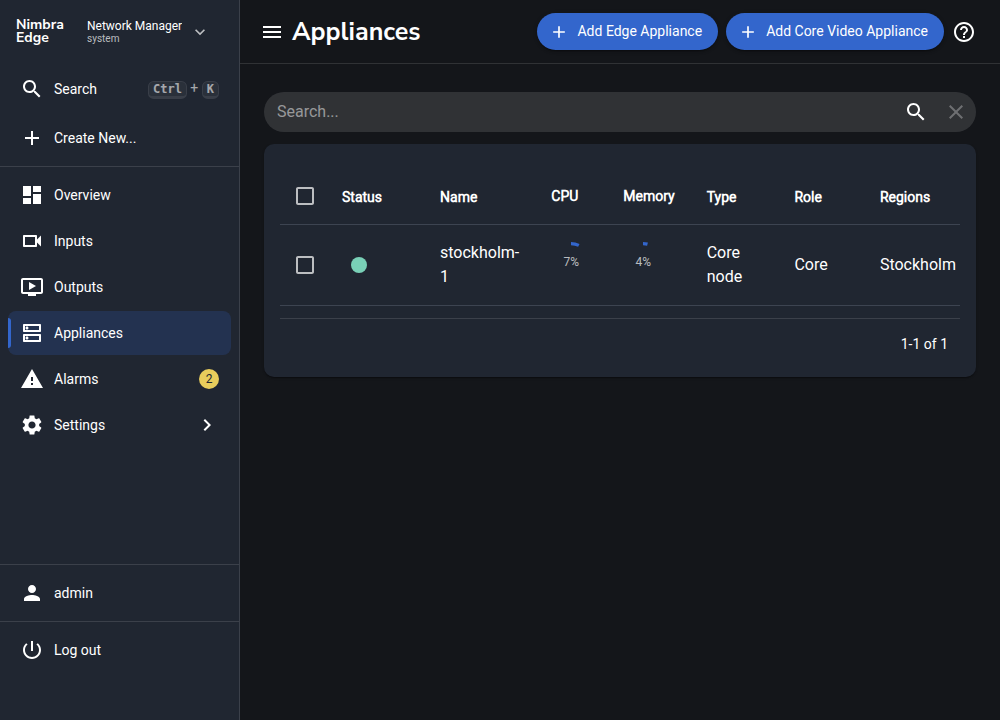
In Network Manager, open Settings → Appliances. Find your appliance and check that it is online and belongs to the region you created. A green status indicator means it is connected.
Nimbra Edge and your first video region are ready. You can now configure video streams. This tutorial uses one Core appliance; add more appliances when you need additional capacity or redundancy.