License your first appliance #
In this tutorial you allocate licenses to a new Nimbra 520 in Nimbra Console, and then check that the appliance has received them. It takes about ten minutes.
The examples use the serial number N5E3W8. Use your own appliance’s serial number instead.
Before you start #
You need:
- A Nimbra Console administrator account. If you need one, ask an administrator in your organization.
- An Edge OS - Nimbra 520 license and a HEVC + MP4 HD/UHD Encode/Decode - 8x HD/2x UHD codecs license that your organization has bought and not yet allocated.
- A Nimbra 520 running Edge OS that can reach the internet.
- The appliance’s serial number. You find it in the appliance’s web interface under Management > License, and on the label on the appliance.
1. Find your licenses #
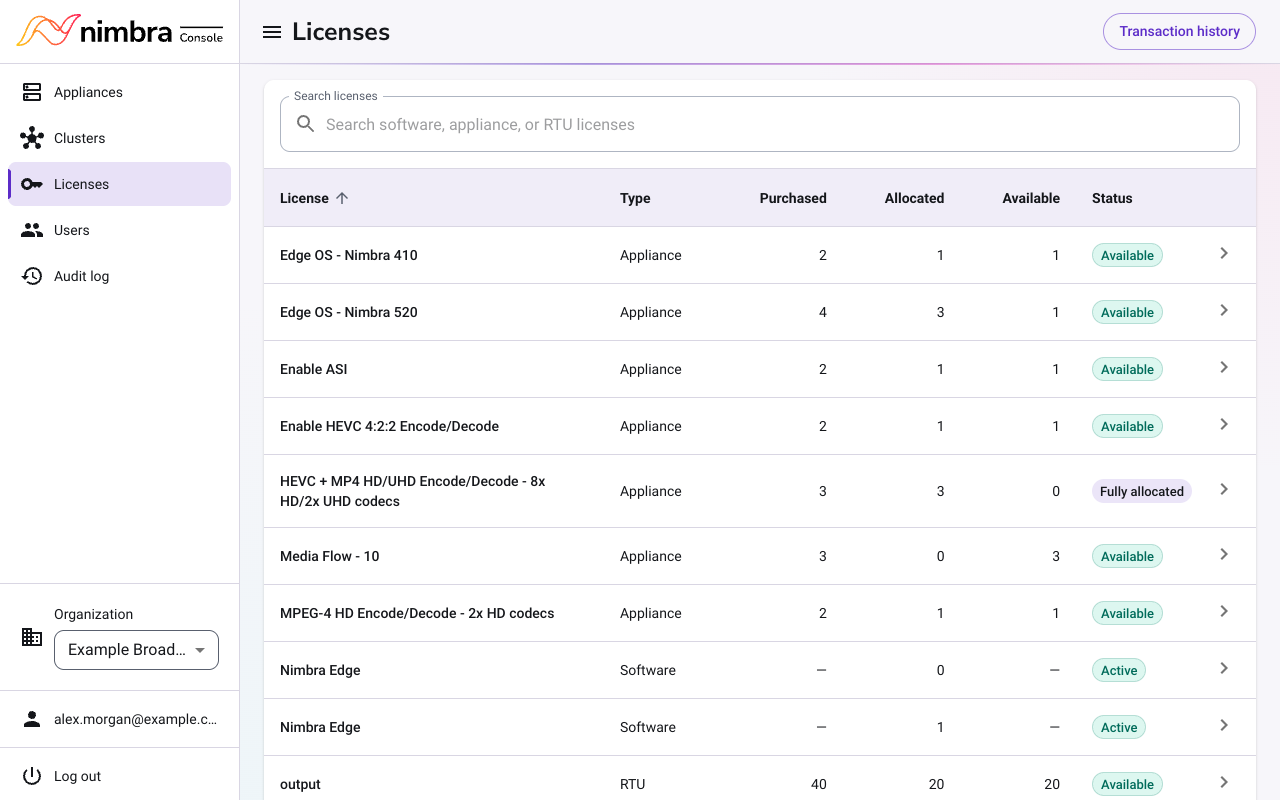
Sign in at console.nimbra.io and select Licenses in the menu. The list shows each license your organization has bought, how many have been allocated, and how many are still available.
2. Allocate the Edge OS license #
-
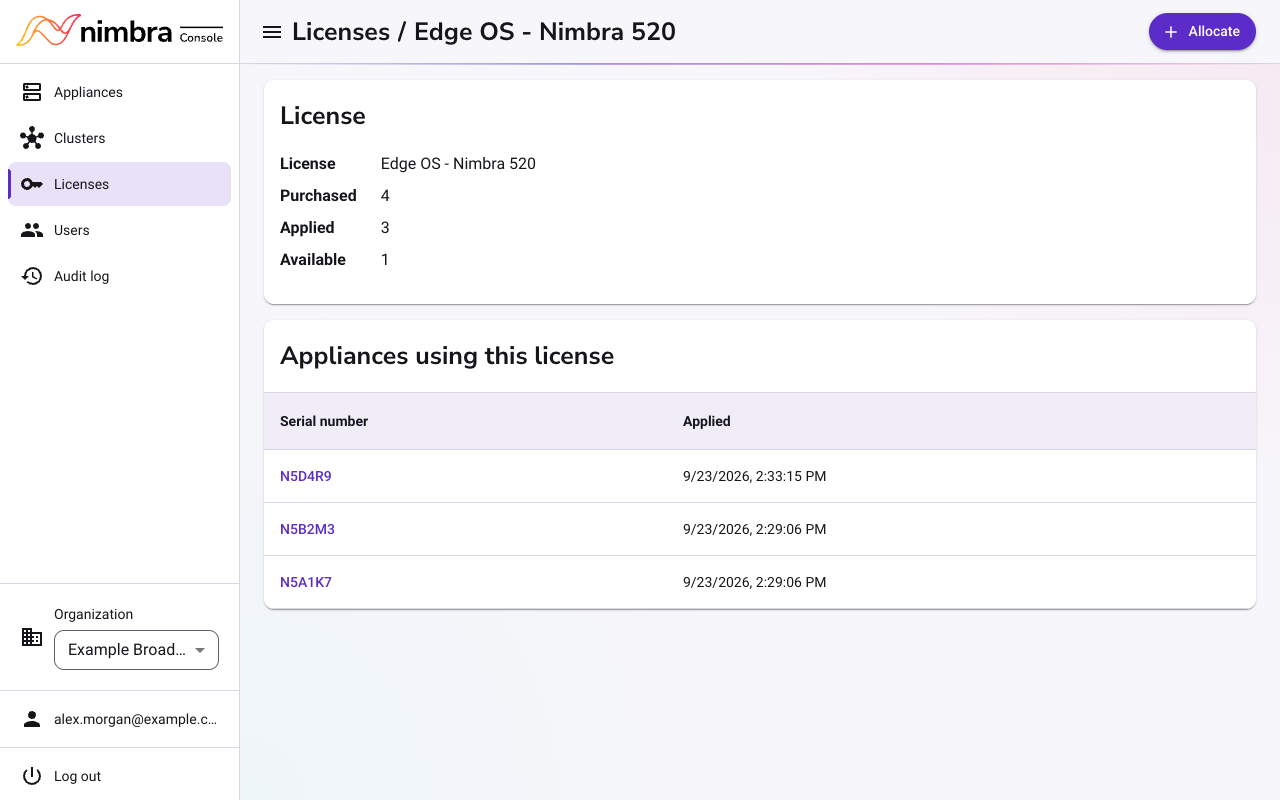
Select Edge OS - Nimbra 520. The page shows the appliances that already use this license.
-
Select Allocate.
-
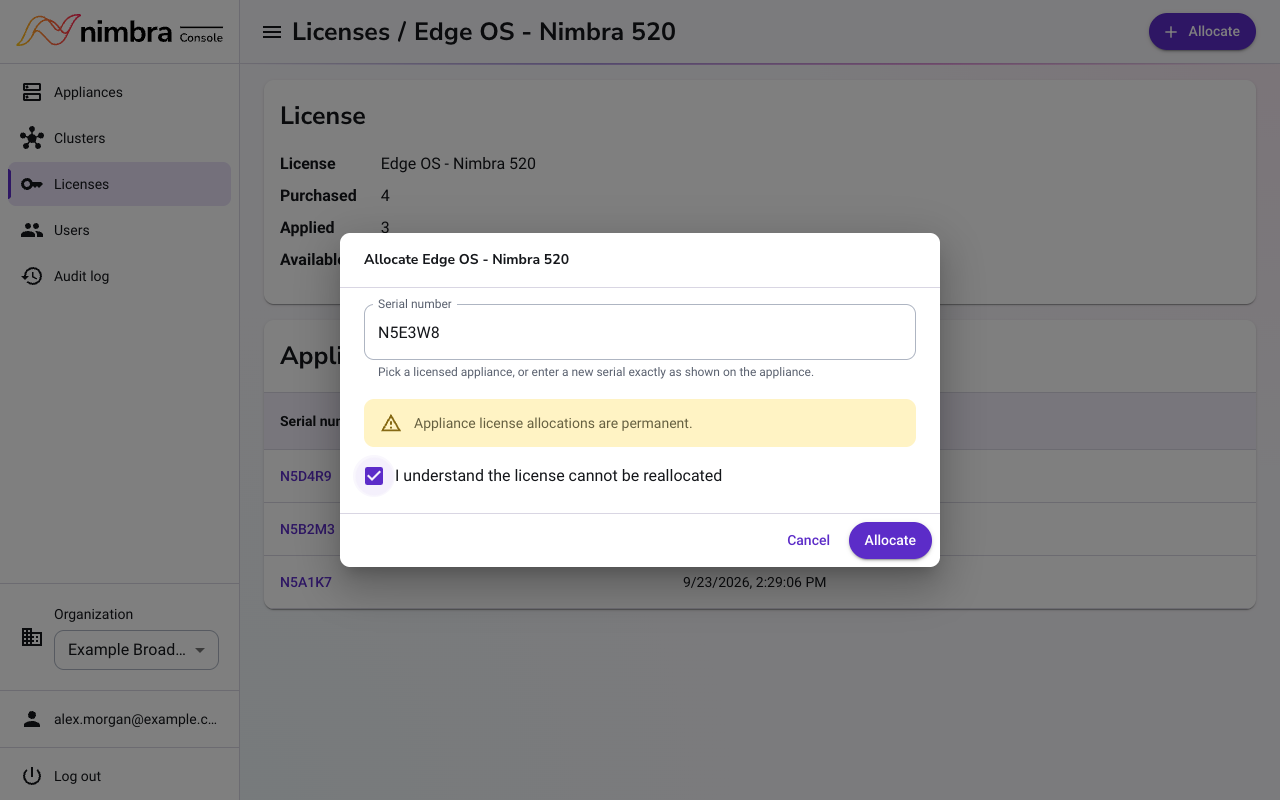
Enter the serial number exactly as it appears on the appliance.
-
Read the warning. An allocation cannot be undone, so check the serial number before you continue.
-
Select I understand the license cannot be reallocated, and then select Allocate.
3. Add encode and decode capacity #
- Go back to Licenses and select HEVC + MP4 HD/UHD Encode/Decode - 8x HD/2x UHD codecs.
- Allocate it to the same serial number, as in the previous step.
4. Check the appliance in Nimbra Console #
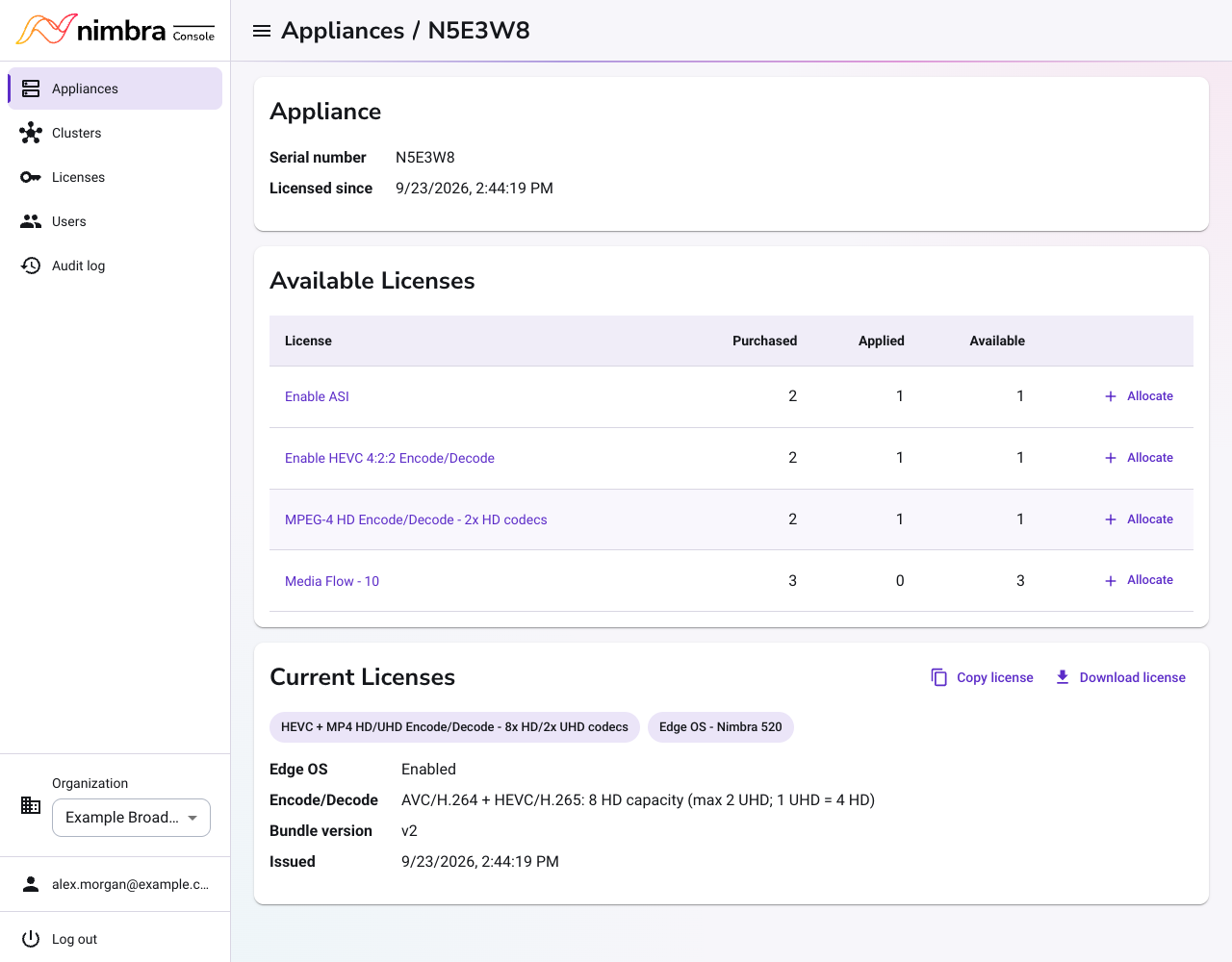
Select Appliances in the menu and then select your serial number. The Current Licenses section shows both licenses and what they allow.
5. Check the appliance #
- Open the appliance’s web interface and sign in.
- Go to Management > License.
Within a minute, the page shows the new licenses. Edge OS shows Enabled, and Encode/decode shows the capacity you allocated. Licenses you have not allocated show Missing license.
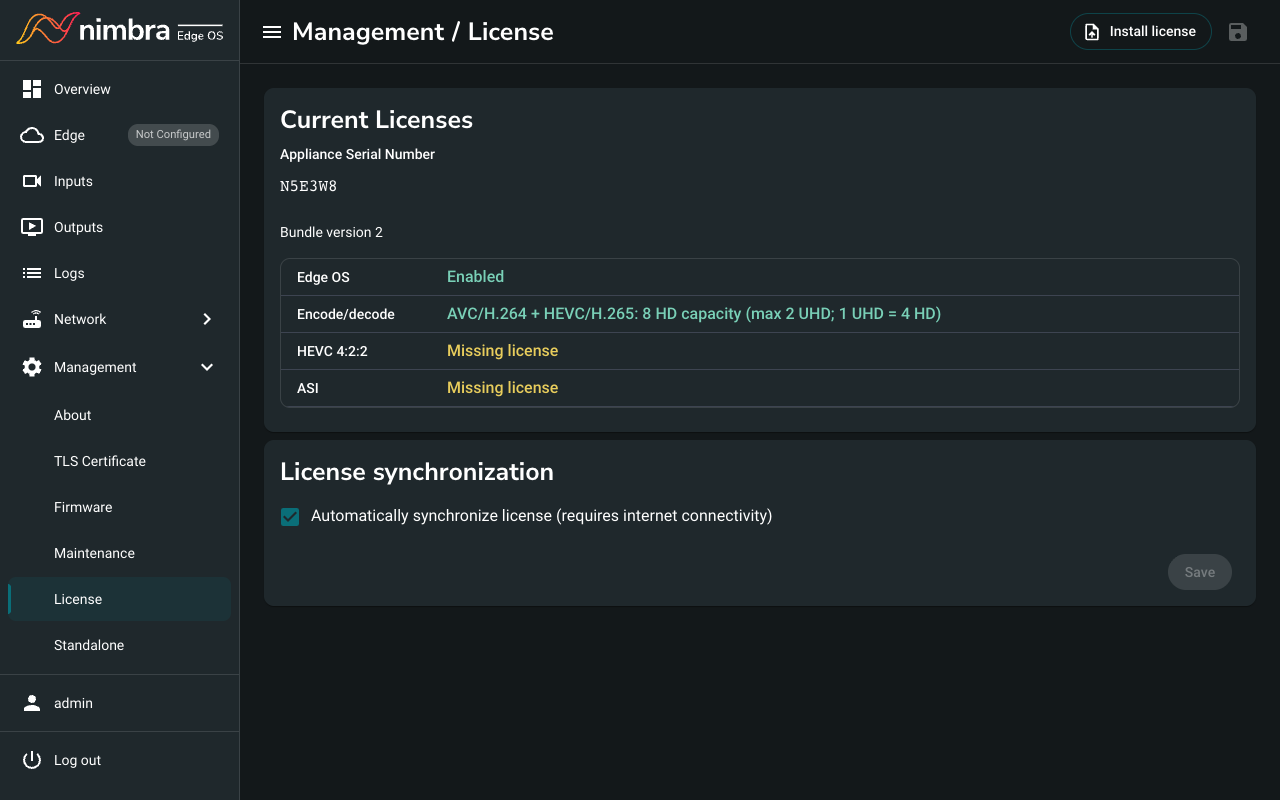
You have now licensed your appliance. Every time you allocate another license to it, the appliance receives the change the same way.